Microsoft shares official guide on fixing Windows Blue Screen errors
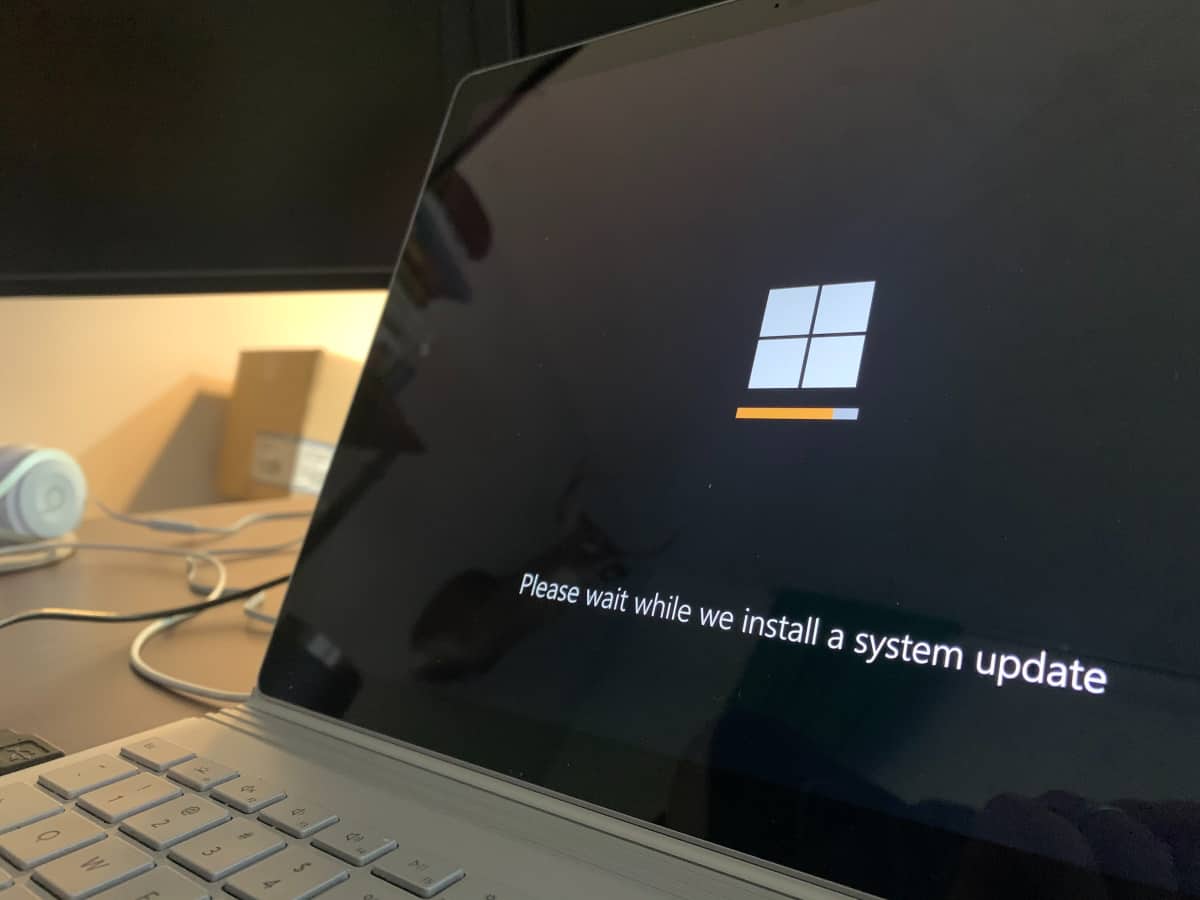
Fixing Blue Screen errors in Windows can be one of the most frustrating experiences. While it is sometimes easy to determine the root cause of the crash, e.g., installation of a Windows update, new driver, or connection of a new device, it may at other times feel like finding a needle in a haystack.
It may take hours or even days to discover the cause and some users may prefer to install a previous system snapshot or even set up the system anew to avoid having to deal any longer with the Blue Screen error.
Note: Microsoft may change the color of the critical error class to green, so that users may refer to the green screen of death instead when refering to these kind of issues.
Microsoft's guide on fixing crashes in Windows
Microsoft published a guide to help Windows users resolve Blue Screen errors on their machines. The guide separates tips into basic and advanced suggestions.
Here are the basic troubleshooting suggestions:
- If you connected any new hardware to the PC, remove it. Restart the PC, and see if the issue is resolved.
- Start the PC in Safe Mode. This is a core troubleshooting mode of the Windows operating system. One easy way to access Safe Mode is to hold down the Shift-key on the keyboard while selecting Power > Restart from the Start menu.
- Check for issues in the Device Manager. Select Start, type Device Manager and press the Enter-key to load it. Look for entries with exclamation points. You could try updating their driver by right-clicking and selecting the "update driver" option. If that does not help, you could try disabling or uninstalling the device.
- Make sure there is enough free space on the main hard drive partition. Microsoft suggests to keep between 10 percent and 15 percent of total storage free of files. You can check used and free space in File Explorer.
- Install Windows Updates. Go to Start > Settings > Windows Update and select the check for updates button there.
- Restore Windows. If none of the above resolved the issue, Microsoft recommends restoring Windows using one of the available recovery options.
While all of these may resolve specific issues, some need clarification. For instance, while installing new Windows updates may help, Windows Updates may sometimes introduce issues. This would require the removal of the update that caused the Blue Screen issue.
Furthermore, suggesting to restore Windows before even mentioning the available advanced options feels like an oversight. Speaking of which, here are the advanced troubleshooting recommendations:
- Check the Event Viewer log for issues. You can launch the Event Viewer from Start by typing Event Viewer and loading the suggested result. There, you need to look for critical errors in the system log that happened around the same time the crash occurred.
- To make sure installed memory is not the culprit, you may run the memory diagnostic tool. To do so, type Memory in STart and select Windows Memory Diagnostic. Check the results in the Event Viewer under system log. Look for MemoryDiagnostics-Results there.
- Lastly, Microsoft recommends analysing a memory dump. This is explained in detail on the Microsoft Learn website.
The information that Microsoft published on the support page is not entirely new. While the support page is new, Microsoft did publish most of the information on the linked Learn website months ago already
Closing Words
Windows users and administrators have different troubleshooting techniques to analyze and resolve crashes of the operating system. Microsoft's suggestions may be useful to inexperienced users who do not really know what to do when they encounter the blue screen error.
Now You: how do you handle Blue Screen errors on Windows? Do you dig deep like Sherlock Holmes to discover the root cause and correct it? Or do you prefer a simpler faster solution? Feel free to leave a comment down below. (via Neowin)
RECOMMENDED NEWS

Free Evernote users may soon be limited to 50 notes
Remember Evernote? The note taking service was acquired in 2022 by Bending Spoons, an Italy-based m...
Fix 0x80070643 - Error Install Failure when trying to install Windows Update
Microsoft released new security updates for its Windows operating system yesterday. Some administra...

Microsoft Graveyard: last honor for dead Microsoft products
You may have heard of Google Graveyard. A website dedicated to all the products and services that G...

First look at Notepad's Spell Checker: surprise, it is not as bad as it sounds
While Microsoft continues to kill some apps, including WordPad and Cortana, it is giving other clas...
HDMI 2.2 to be unveiled at CES 2025 - requires new HDMI cable
The HDMI Forum plans to unveil HDMI 2.2 officially at a press conference on January 6th, 2025. The ...
Sony increases PlayStation 5 price in Europe, Australia and New Zealand
Sony has announced a price increase for the PlayStation 5 console in some Countries for a second ti...
Comments on "Microsoft shares official guide on fixing Windows Blue Screen errors" :