How to use Google Search entirely AI-free automatically
Google is integrating AI information into Google Search. Called AI Overviews, it is a feature that is rolling out to users from specific regions already. The feature adds an AI response to the very top of the search results. Below that, you find the regular web links.
There are good reasons to skip AI output. From hallucinations, which means made-up information, to returning the wrong or even dangerous information. Add ads to that, which Google is now also rolling out in the United States, and you may not be super interested into these results at the time of writing.
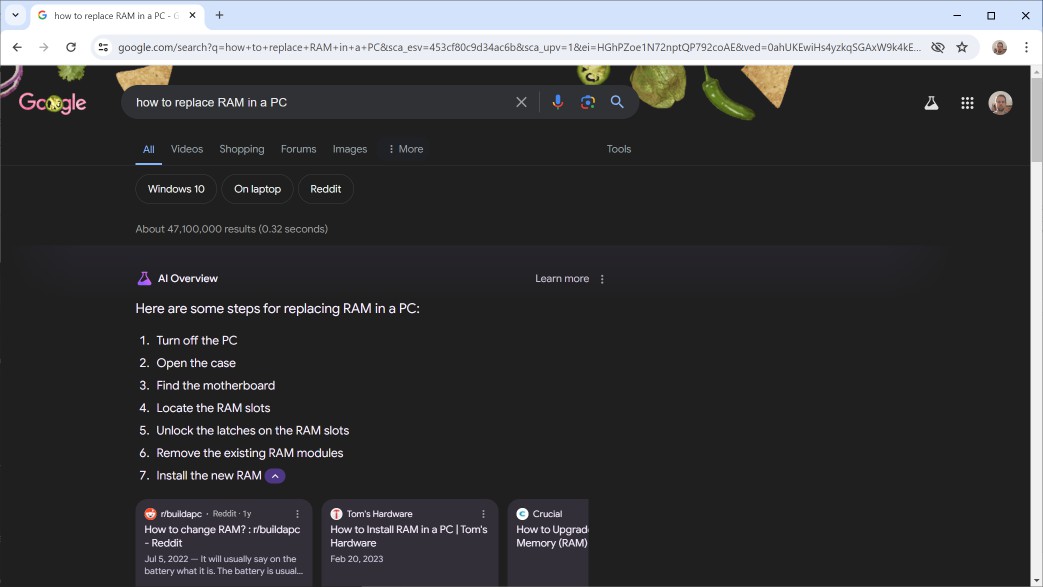
If you prefer to search without any AI, then you may do so. Google integrated the option into Google Search, but it is buried under the "more" option there. Good news is that you may use it directly, without having to pick the option manually each time.
This guide walks you through the steps of running searches on Google entirely AI-free again. It includes information on adding an AI-free Google search engine to your favorite web browser.
Google Search without AI
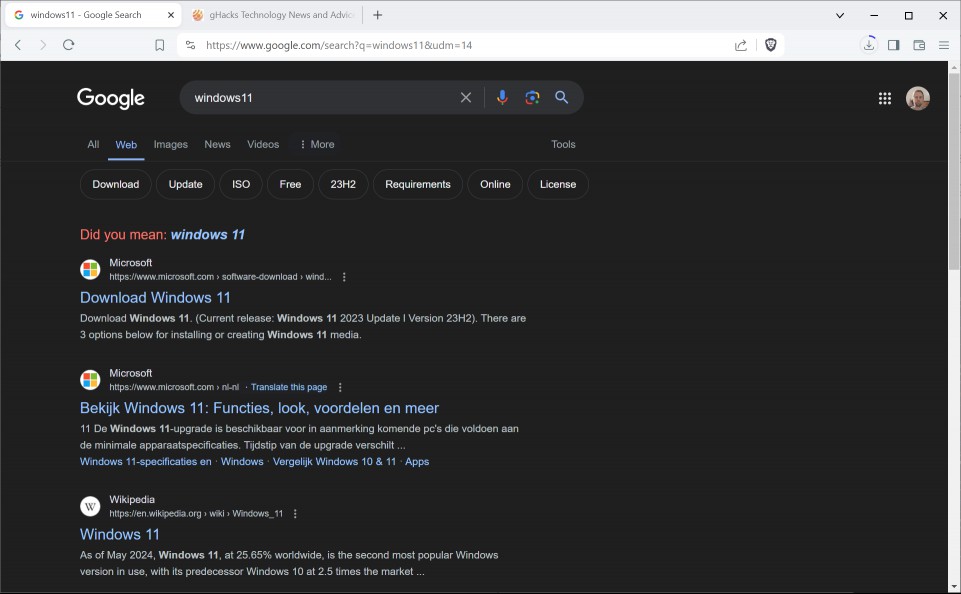
Google uses a parameter to determine output. If you use a special parameter in the URL, Google will show web links only. You won't get an AI Overview at the top, nor any other AI-related content.
What you need to know: the parameter &udm=14 returns web-only links without AI content.
While you can append the parameter to any Google Search URL manually, doing so is cumbersome. One option that you have at your disposal is to add a custom search engine to your browser of choice that uses the parameter.
Whenever you run searches, the parameter is added automatically and you get AI-free search results.
How that is done differs slightly depending on the browser that you use.
Chromium-based browsers (including Google Chrome, Brave, Vivaldi, Opera and more more)
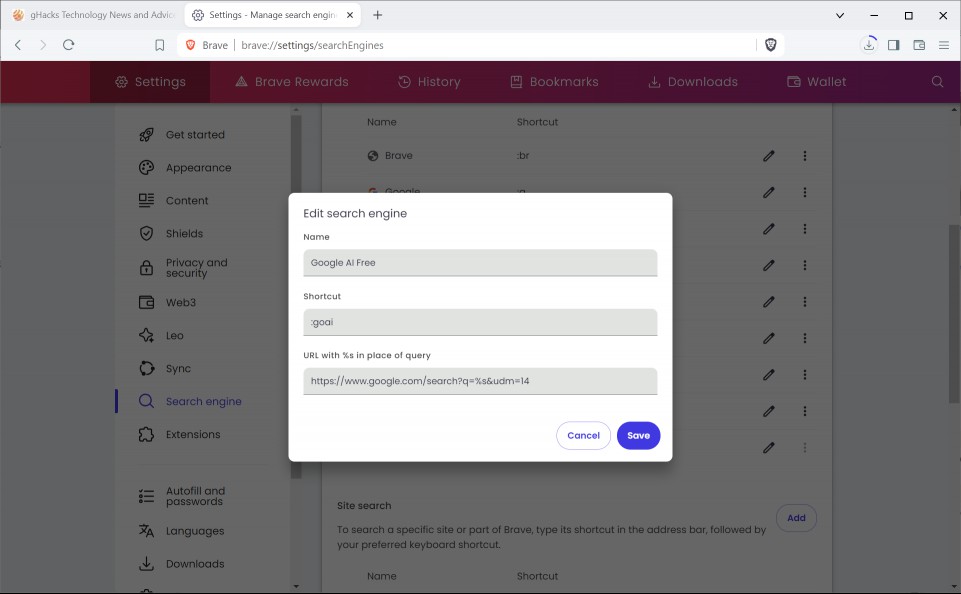
- Load chrome://settings/searchEngines in the address bar.
- Click on the add button under Site search.
- Type any name.
- Type a shortcut, e.g. :go
- Paste https://www.google.com/search?q=%s&udm=14 into the URL field.
- Click on Add.
- Left-click on the three dots next to the newly created search engine and select "make default".
- Run a test search from the address bar to see if it works.
Microsoft Edge
- Load edge://settings/searchEngines in the address bar.
- Select Add next to Address bar search engines.
- Type a custom name for the search engine.
- Add a shortcut, e.g. :go.
- Paste https://www.google.com/search?q=%s&udm=14 into the URL field.
- Click on Add.
- Left-click on the three dots next to the newly created search engine and select "make default".
- Run a test search from the address bar to see if it works.
Mozilla Firefox and Firefox-based browsers such as Mullvad Browser or Tor Browser
- Load about:config in the address bar.
- Confirm that you will be careful.
- Search for browser.urlbar.update2.engineAliasRefresh.
- Create a new Boolean value and make sure it is set to True.
- Restart the browser.
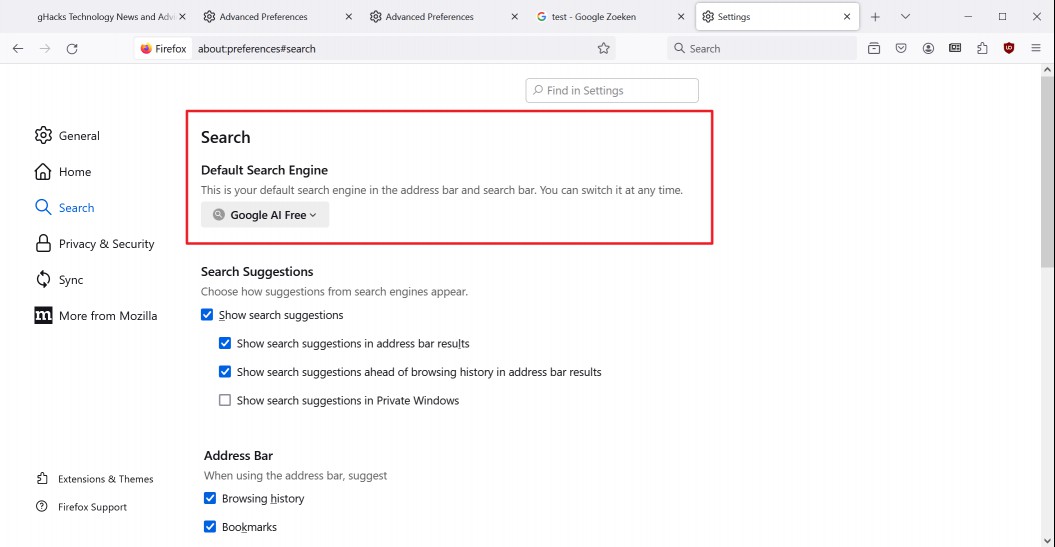
- Load about:preferences#search in the Firefox address bar.
- Click on the Add button.
- Type any name for the search engine.
- Paste https://www.google.com/search?q=%s&udm=14 into the Engine URL field.
- Type any alias, e.g. @go
- Click on Add Engine.
- Scroll to the top of the page.
- Select the newly created search engine as the default search engine.
- Run a test search to find out if it works.
Tip: In case you do not want to make Google Search the default, you may run searches from the address bar manually using it. Just type the shortcut / alias in the address bar first followed by pressing the Tab-key and then typing the search term.
Closing Words
If you use Google Search but do not want AI Overviews or any other AI content returned, this is the best option to do so. You could also try search engines that use Google's index, such as Startpage, which does not have AI results at the time.
RECOMMENDED NEWS

A musical flashback with Spotify Wrapped 2023
The wait is finally over and Spotify Wrapped 2023 is here, offering a personalized recap of your li...
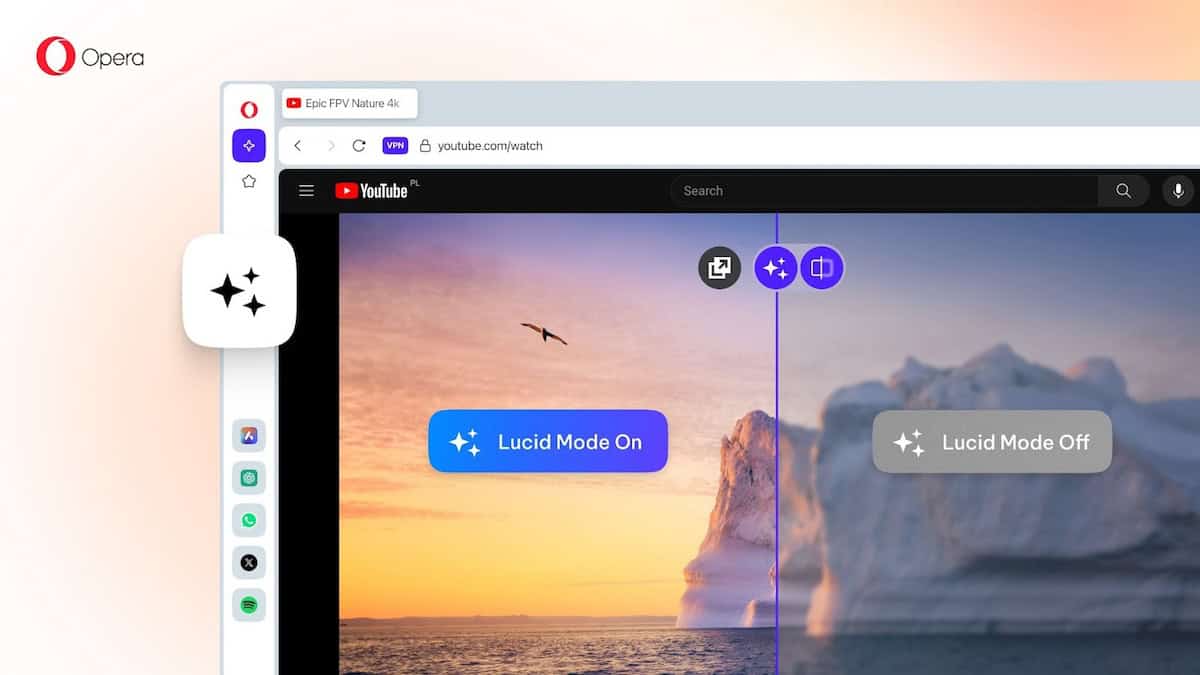
Opera Lucid Mode 2.0 brings refined controls and a comparison slider
About a year ago, I wrote about Lucid Mode in Opera browser. Now, the feature has been enhanced wit...

TunnelVision attack against VPNs breaks anonymity and bypasses encryption
Researchers from Leviathan Security have discovered a new vulnerability that affects virtual privat...

First look at Notepad's Spell Checker: surprise, it is not as bad as it sounds
While Microsoft continues to kill some apps, including WordPad and Cortana, it is giving other clas...

CrowdStrike in a nutshell: how a faulty software update took down millions of Windows PCs
A software update by cybersecurity company CrowdStrike was responsible for taking down millions of ...

DOJ pushes for Google to sell Chrome to break search monopoly
The U.S. Department of Justice (DOJ) is intensifying its efforts to compel Google to divest its bro...
Comments on "How to use Google Search entirely AI-free automatically" :