How to remove "Start back up" in Windows 11's File Explorer
Start back up may be displayed in File Explorer on Windows 11 if you open certain folders. The command is displayed in the path field and its placement may irritate some users of the operating system because of that.
This guide explains why Start back up is displayed by the Windows File Explorer in certain folders and how to turn this off. There is only one way of disabling the command in File Explorer. While it is possible to uninstall OneDrive, it may not be desirable by some users of the system.
The feature is linked to OneDrive, the default file storage and synchronization solution. Back up in particular is linked to OneDrive's " Back up important PC folders to OneDrive" feature. It allows Windows users who use OneDrive to back up files to the cloud storage service automatically or on command.
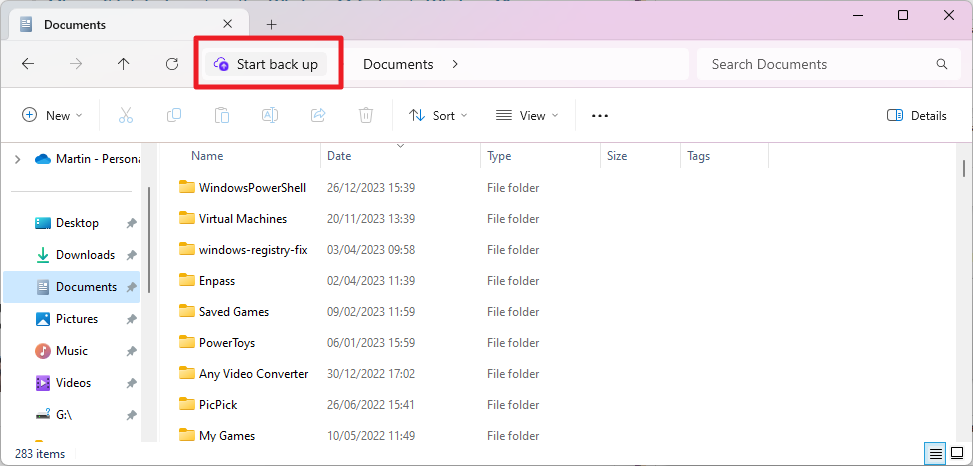
The " important PC folders" are the ones that Start back up may be displayed for when you open the folder in File Explorer. In other words, you may see the command in the Documents, Pictures, Desktop, Music and Videos folder in File Explorer.
How to remove Start back up in File Explorer
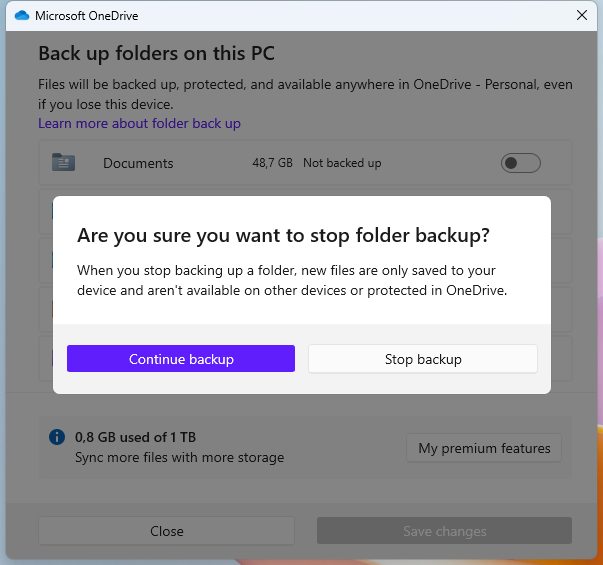
The only way to remove Start back up in File Explorer without uninstalling OneDrive is to stop backups. Note that backups may be enabled even if they have never run.
The following guide walks you through the configuration to make sure backups are disabled completely.
- Either click on "Start back up" in File Explorer or click on the OneDrive icon on the Windows taskbar, select the cogwheel icon, then Settings and then the Manage backup button in the interface.
- Deselect any folder that is set to backup files.
- Activate the "save changes" button.
- Confirm that you want to end backups by selecting "stop backup".
Once done, OneDrive won't display the command anymore in File Explorer. Note that the command is restored whenever you activate the backup feature for any of the supported folders.
Removal does not interfere with any other OneDrive functionality. In fact, you can select a folder manually to have it backed up to OneDrive without using the service's integrated back up feature.
You may have encountered other solutions on the Internet. These may include uninstalling Windows updates or using ViVeTool to disable the feature. These are not recommended. The Windows Update suggestion won't work unless you don't install any cumulative updates anymore on the system. ViVeTool may or may not work, but there is a chance that it may stop working at any time, if it still works.
Closing Words
Displaying "Start back up" in the path in File Explorer is another example of Microsoft's attempts to get users to use its cloud-based and subscription-based services. Windows feels more and more like a vessel to push sales of other services.
Why is that option even in File Explorer? It is already integrated in the OneDrive interface.
Now You: do you back up files to the cloud?
RECOMMENDED NEWS

Windows in 2024: Microsoft working on AI-focused Windows release
Rumors about a new version of Windows that Microsoft plans to release in 2024 have been around for ...

The Windows December 2023 security updates fix a 0-day vulnerability
Microsoft released security updates for all supported Windows operating systems and other company p...

Windows 11: new Features roll out in the coming 2 months
Microsoft released an optional non-security update for Windows 11 today that introduces a set of ne...

ChatGPT no longer requires an account to use, but there are some limitations
OpenAI has announced a major change to its AI-based chat service. ChatGPT is now available for use ...

Microsoft Phone Link will soon let you extract text from images
Microsoft is testing a new feature in its Phone Link app. The PC app will soon allow users to extra...

China's Open-Source AI Model 'Goku' Challenges U.S. Dominance
Another AI from China has been announced. This time, ByteDance has introduced 'Goku,' an open-sourc...
Comments on "How to remove "Start back up" in Windows 11's File Explorer" :