Press Space on YouTube to save lots of time
If you watch videos on YouTube, you may know about some of the options that you have. One of the options lets you change the playback speed. You may increase the speed of videos up to 2x, which is great under certain circumstances.
Besides videos with very slow speakers, it may also be useful to quickly speed through certain passages on a video. Fiddling around with the control is not straightforward, on the other hand.
The process requires several clicks: on Settings, then Playback Speed and then the desired speed level. If you want to set a custom level, you need even more interactions to get there.
Then, if you want to change it again or reset it to the default level, you need the exact number of clicks to get there.
Space is your friend on YouTube
YouTube supports keyboard shortcuts. One of these shortcuts is the Space-key. When you hold it, YouTube will play the video in 2x speed automatically.
Great for speeding through certain sections in a video without having to use the seekbar or configuring a different playback speed.
Once you let go of the Space-key, video playback speed returns to the default level. It is a convenient way of changing the playback speed for certain parts of the video.
Note: the keyboard shortcut works for regular videos on YouTube only. It does not work when you play YouTube Shorts. Pressing the Space-key while a Shorts video plays toggles Pause and Play.
On mobile, there is no Space-key that you may press to speed up videos. Still, there is an option. It works for regular videos only as well, not for Shorts.
Put a finger on the video on the device and hold it there. YouTube speeds up by the factor 2x as long as you hold the finger on the video. Let go and it restores the original playback speed again.
YouTube supports a wide variety of shortcuts. Some of them are related to seeking in videos.
Here is a selection of shortcuts that you may find useful:
- > to speed up the video playback rate.
- < to slow down the video playback rate.
- j to seek backward 10 seconds.
- l to seek forward 10 seconds.
- . skip to the next frame (while video is paused)
- , skip to the previous frame (while video is paused)
- Home-key (or 0-key) seeks to the beginning of the video.
- Numbers 1-9 seek to a certain percentage, from 10% to 90%.
- End-key seeks to the last seconds of the video.
Best of all, all of these shortcuts work even if you use an adblocker.
Now You: do you use keyboard shortcuts on YouTube or other media sites?
RECOMMENDED NEWS
Winamp source code released, but developers criticize its restrictive license
The legacy media player, Winamp, has gone open source. But the license has come under fire from the...
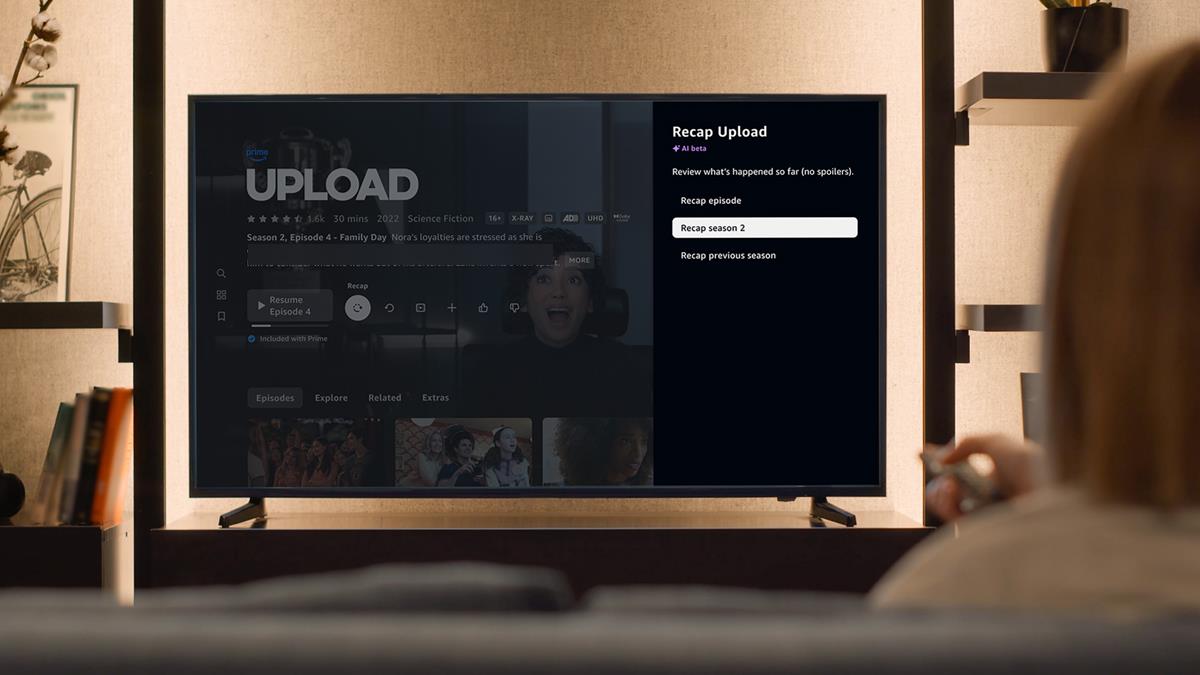
Amazon Prime Video's AI will recap the story of TV show episodes and seasons
Amazon Prime Video is getting a new AI feature. The streaming service is introducing X-Ray Recaps t...

New Security Feature in Edge Aims to Combat Deceptive Scareware Tactics
Microsoft has rolled out a new security feature for its Edge browser designed to combat scareware—a...
Thunderbird Pro and Thundermail announced: what you need to know
When Mozilla announced plans to drop the email client Thunderbird about ten years ago, some users f...
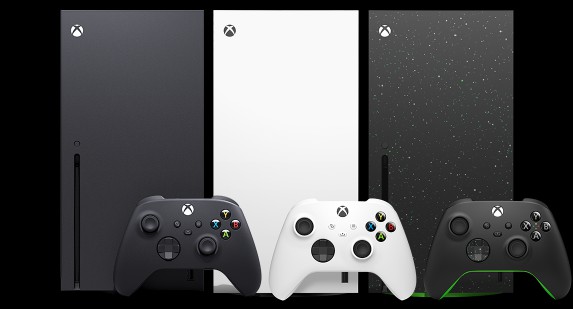
Microsoft increases prices for Xbox consoles, accessories and new game releases
Microsoft has announced a significant price increase for its Xbox consoles and accessories effectiv...

OpenAI's latest AI models are generating alarming levels of misinformation
OpenAI's latest AI models seem to have a big problem. A report reveals that the GPT o3 and o4-mini ...
Comments on "Press Space on YouTube to save lots of time" :