Google explains how Drive users may restore lost files
Some Google Drive users reported online that they were missing months worth of files. Most stated that they lost months worth of files from one day to the next. It took Google a few days to confirm that "a small subset" of Google Drive users was affected by the issue.
Google has now identified the underlying issue that caused the loss of files for users. The culprit, according to Google, is Drive for Desktop. Google Drive for desktop version 84.0.0.0 to 84.0.4.0 may cause the issue for devices running Microsoft Windows or macOS.
Google posted instructions to restore lost files that affected Drive users may follow. A new support page lists three options that users have at their disposal to deal with the issue and recover their files.
- Recover files from backup from the Drive for desktop app
- Advanced: Recover files from backup using the command line interface
- Additional troubleshooting options for data recovery
Recover files from backup from the Drive for desktop app
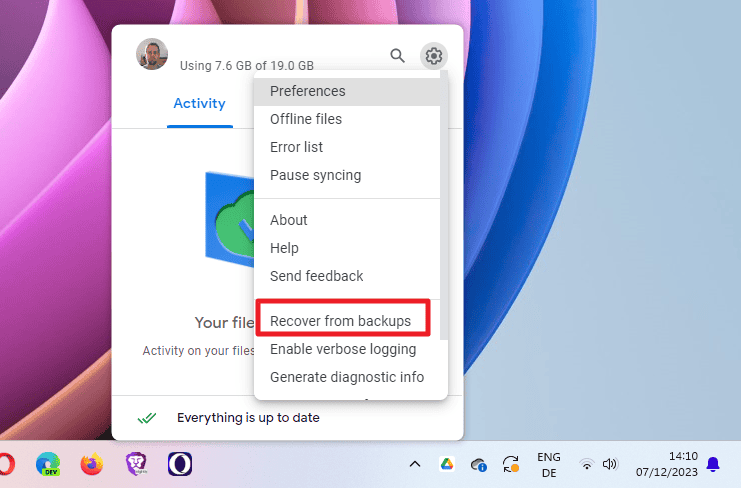
This is probably the easiest option for most users. Here are the required steps:
- Download and install the latest version of Drive for desktop for Windows or macOS.
- Run Drive for the desktop.
- Open the Drive interface with a click on the icon.
- Hold down the Shift-key and left-click on the Settings icon in the Drive interface.
- Select "Recover from backups". One of two things happens next:
- Recovery has started. This starts the restoration process of the files, which is good. There may still be issues related to disk space, but if you have enough free storage, the files should be restored.
- No backups found. The files can't be restored using this way.
The other options
Instead of trying to restore Google Drive files using the method described above, you may also try to restore backups from the command line.
Google suggests to run the following command on Windows after making sure that the Drive for desktop software is not running anymore: "C:\Program Files\Google\Drive File Stream\launch.bat"--recover_from_account_backups
Users on macOS need to run the following command in Terminal instead after closing Google Drive: "/Applications/Google Drive.app/Contents/MacOS/Google Drive"
--recover_from_account_backups
If this method fails as well, you may still be able to restore data from an operating system backup.
Here is how that is done on Windows:
- Open the following directory in Explorer: %USERPROFILE%\AppData\Local\Google
- Right click on DriveFS -> Properties -> Previous Versions tab.
- If a previous version is available, select the latest version before the Drive for desktop account was disconnected. Then click the dropdown next to the [Restore] button and select [Restore to ...]
- Select a destination folder and save the DriveFS directory there.
- The restored DriveFS folder can now be used to recover Drive files using the command line interface.
And this is the macOS step-by-step guide:
- Open a new Finder window.
- In the menu bar at the top of the screen open the “Go” menu and click “Go to Folder”.
- Copy and paste the following into the box ~/Library/Application Support/Google/DriveFS
- Follow the steps at Restore items backed up with Time Machine on Mac - Apple Support to restore any folders with 21-digit names that have been deleted.
- Proceed with the steps to use the Drive recovery tool to recover your files.
Closing Words
Affected Google Drive users may be able to restore their files from a backup. Users who tried to fix the issue by disconnecting their accounts or deleting caches may not be able to restore their files.
Now You: were you affected by the Drive issue? Did one of the methods restore your files? (via Deskmodder)
RECOMMENDED NEWS
Chrome shows how much memory a tab uses
Google is testing a new feature in its Chrome web browser that reports the memory usage of each bro...
iOS 17.2.1 is reportedly causing connectivity issues for some users
It has been nearly two weeks since Apple released the iOS 17.2.1 update. And it appears that many p...
iodé turns your Android phone into a sustainable privacy fortress
France-based iodé has established itself as a viable option in the smartphone privacy and sustainab...

Netflix starts pushing Basic users to other plans forcefully
Netflix has started to ask basic plan customers to pick another plan to continue using the service ...
Teams: Microsoft launches unified app for everyone to end two-version-chaos
Today, Microsoft has put an end to the Microsoft Teams chaos that has plagued Windows users for yea...

Warhorse Studios Co-Founder Criticizes Unreal Engine 5 for Open-World Game Development
Daniel Vávra, co-founder of Warhorse Studios, the studio which created Kingdom Come Deliverance, ha...
Comments on "Google explains how Drive users may restore lost files" :