How to restore the Photos Legacy app on Windows
Microsoft launched a new Photos application for Windows some time ago. It replaced the previous version of the Photos app, which Microsoft now calls Photos Legacy.
Some features of the legacy app were dropped in the new Photos app. These include video editing features, slideshow maker, and the album feature. The new Windows Photos app does not support these features. Video editing was moved to Clipchamp, a video editor that Microsoft acquired some time ago. The other features are no longer available in the Photos app.
The new Photos app for Windows offers features that the legacy version does not support. There is iCloud integration, which brings Apple ecosystem photos to Windows.
If you look closer, you will find additional differences. The "on this day" view is gone in the new Photos app, and search is limited to metadata and filenames. The legacy app supports finding people, places and things as well. The legacy app used basic AI to find matching photos. Search for countryside and it would return photos that it classified as matching. The feature was never perfect, but it is still superior to relying on filenames and metadata only.
How to restore the Photos Legacy app on Windows
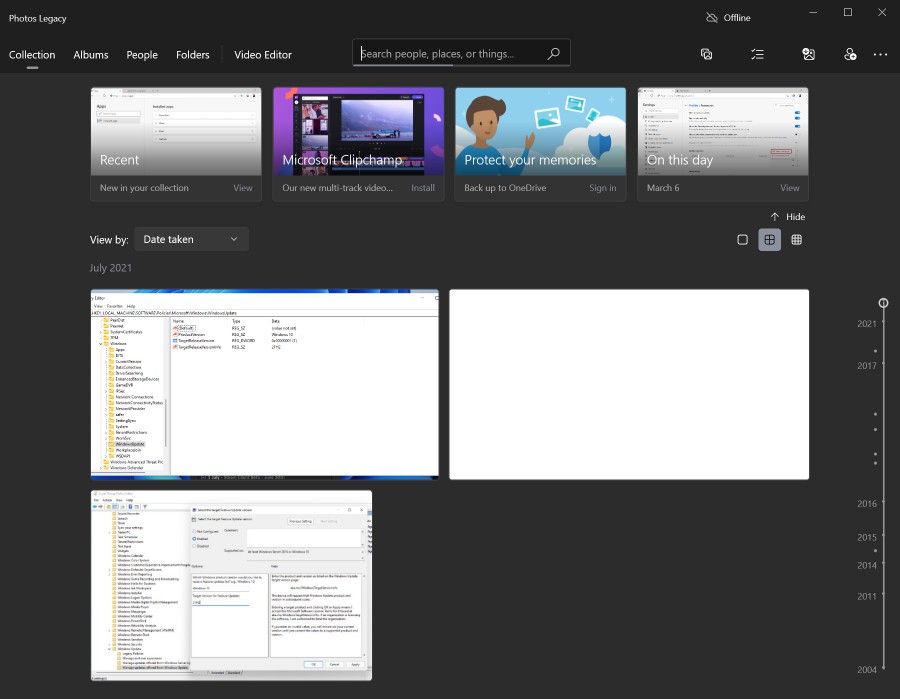
Microsoft seems to be aware of the shortcomings of the new Photos app for Windows. It moved the old Photos app for Windows to the Microsoft Store. This means, that you may install the Photos Legacy app on Windows 10 and 11 devices again. Even better, you may use it in parallel with the new Photos app.
There is a chance that Microsoft is adding missing functionality to it. For now, you may continue to use the old Photos app on Windows.
Problem is, if you search for Microsoft Photos Legacy on the Microsoft Store, you won't find it. Only the new Photos app turns up if you search for Photos or the actual name, Microsoft Photos Legacy, on the store.
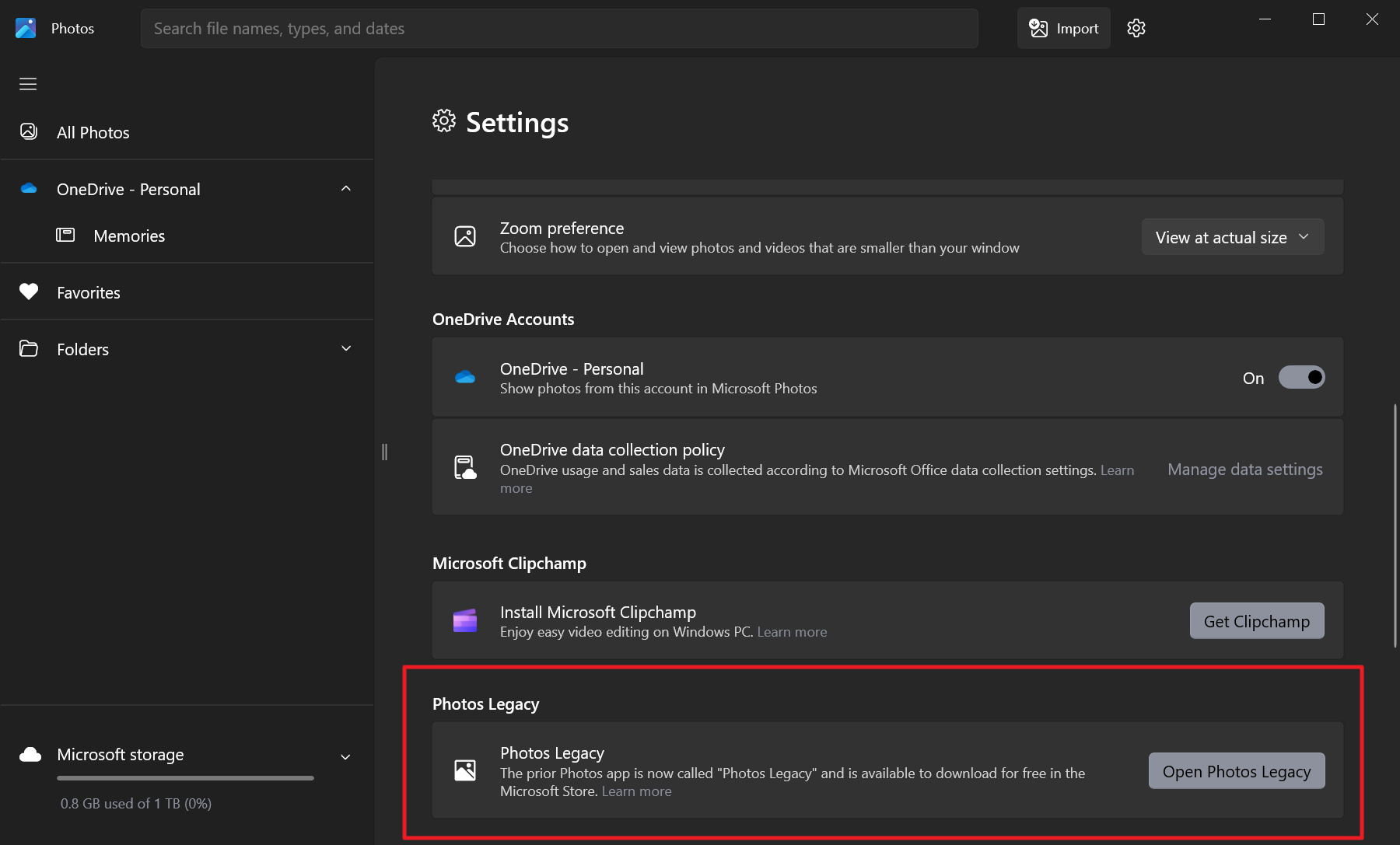
The only way to get it is through the new Photos app. Here is how that is done:
- Open the Photos application on your Windows device.
- Select the settings icon in the top right corner of the Photos app interface.
- Scroll down to Photos Legacy.
- Activate the "Open Photos Legacy" button on the page.
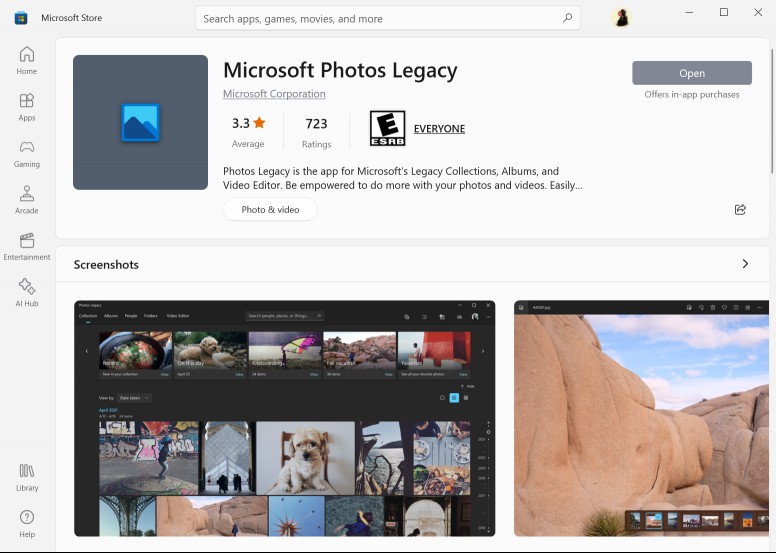
This launches the Microsoft Store page of the legacy app. Activate the install button on the Store page to install it on the device. You may then launch it from the Start Menu like any other app.
Closing Words
Windows 10 and 11 users who want to keep on using the legacy Photos app can do so. It is hidden from searches by default, as Microsoft wants users of the operating system to use the new Photos app instead.
The app won't get any new features added to it, but there is a chance that it will get the occasional bug fix and correction of an issue.
Now You: which app do you use to view photos and images?
RECOMMENDED NEWS

Brave Browser 1.63 launches with vertical tabs on right support and more AI
Brave Software released a new version of its Brave Browser to the public. Brave Browser 1.63 includ...

Bitwarden Authenticator now lets you import TOTP tokens from other authenticator apps
Bitwarden Authenticator has added support for exporting and importing Time-based One-Time Passwords...
Google Photos Offers Free Replacement of Prints Lost in Los Angeles Fires
In response to the recent fires in Los Angeles, Google Photos is offering free replacements for can...

TikTok Returns to U.S. App Stores Amid Ongoing Uncertainty
TikTok has been reinstated on Apple's App Store and Google's Play Store in the United States after ...
Google confirms that Driving Mode has been removed from Google Assistant
Google has officially announced that it has removed Assistant Driving Mode from Google Maps on Andr...

More details emerge about Google's child-friendly Gemini AI app for kids
Recently, a report revealed that Google may soon release a child-friendly artificial intelligence v...
Comments on "How to restore the Photos Legacy app on Windows" :