How to restore the full date and time format on Windows 11's taskbar
Microsoft rolled out a change recently on Windows 11 that removed some bits of information from the taskbar. For the date, only day and month are shown, while the year has been removed. For the time, only the hour and minute is shown. Information such as AM or PM has also been removed.
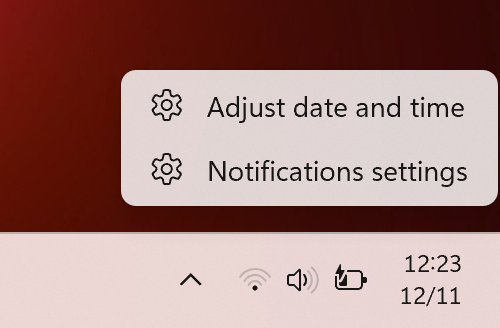
Microsoft says this was done to free up space on the taskbar. While some users may like the change, as it gives them more room for other icons and information on the taskbar, others may dislike it.
Good news is that Microsoft added a new preference as well that allows users who do not like the change to restore the classic behavior.
Tip: You can hover with the mouse cursor over date and time to get a small popup with the full information.
How to restore the full date and time on Windows 11
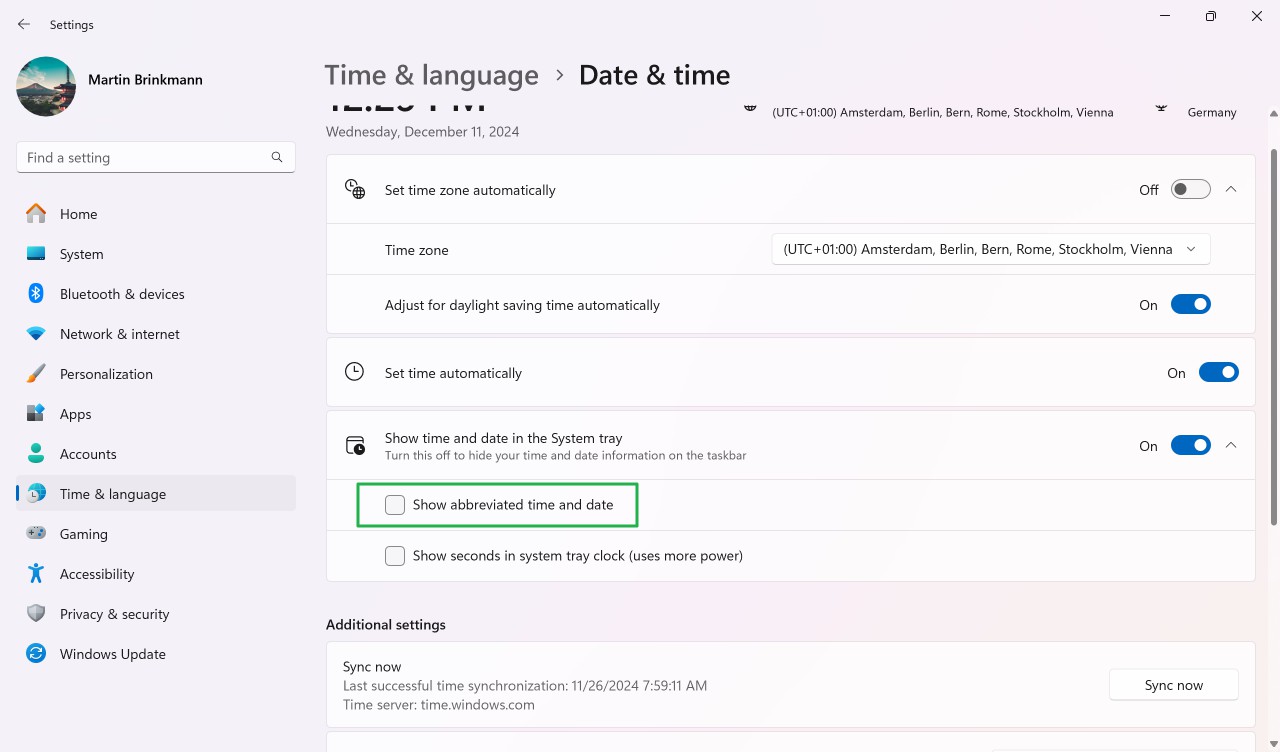
Here is a step-by-step guide to restore the classic taskbar behavior:
- Right-click on date and time on the taskbar.
- Select "adjust date and time". You can also open Settings > Time & language > Date & time manually instead.
- Expand "Show time and date in the System tray" by clicking on the down-arrow icon.
- Uncheck "Show abbreviated time and date".

The change is immediate. You should see the full date and time again on the taskbar.
Using the Registry
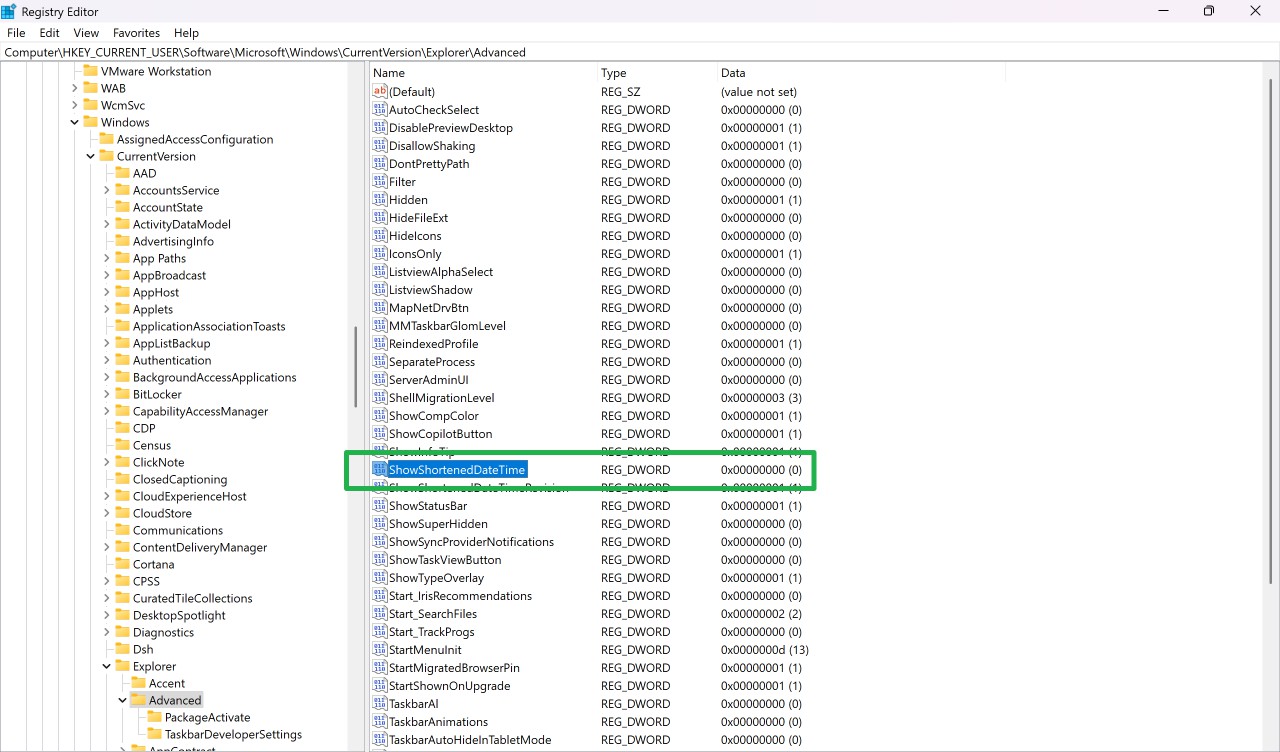
Administrators may modify the Registry to restore the classic display of date and time on Windows 11's taskbar.
- Open the Start menu.
- Type regedit and press the Enter-key.
- Confirm the security prompt that is displayed.
- Go to HKEY_CURRENT_USER\Software\Microsoft\Windows\CurrentVersion\Explorer\Advanced
- Check if ShowShortenedDateTime exists on the right.
- If it does, go to step 6.
- If it does not, do the following:
- Right-click on Advanced.
- Select New > Dword (32-bit) Value.
- Name it ShowShortenedDateTime.
- Double-click on ShowShortenedDateTime.
- Set its value to 0.
- Restart the PC.
Tip: To restore the default, delete the key ShowShortenedDateTime, or set its value to 1.
Using the Group Policy Editor
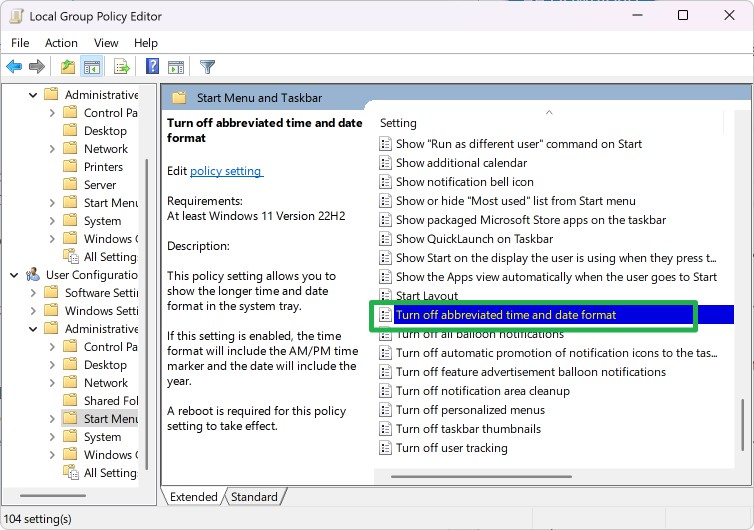
Note: the Group Policy Editor is only available in Pro, Enterprise, Workstation, or Education versions of Windows 11. Home users may want to use the Registry directly to make the change, as described above.
- Open the Start menu.
- Type gpedit.msc and press the Enter-key.
- Navigate to User Configuration > Administrative Templates > Start Menu and Taskbar.
- Double-click on "Turn off abbreviated time and date format".
- Change the value from "Not configured" to "Enabled".
- Click on ok.
- Close the Group Policy Editor.
- Restart the PC.
Closing Words
There you have it. It takes just a few clicks to restore the full date and time format on the taskbar on Windows 11 devices.
Now it is your turn. Do you like the new format? Or do you prefer the old? Feel free to leave a comment down below.
RECOMMENDED NEWS

Mozilla released a Firefox Nightly test build with vertical tabs
Mozilla released a Firefox Nightly test build recently that includes support for vertical tabs. Thi...

Microsoft is deprecating Legacy DRM services - these clients are affected
Microsoft has added another feature to the list of deprecated Windows features. After tagging Paint...

AMD Delays Launch of RX 9000 Series Amid Event Cancellation
AMD's recent decision to cancel the highly anticipated event for its Radeon RX 9000 series graphics...

Google launches Gemini Live video and screen sharing features for Pixel 9 and Galaxy S25
Google has announced an update to Gemini Live platform, by introducing Gemini Live Video and Screen...

Microsoft shares official guide on fixing Windows Blue Screen errors
Fixing Blue Screen errors in Windows can be one of the most frustrating experiences. While it is so...

Microsoft adds Copilot to the Windows 11 context menu, but you can disable it
Microsoft is finding new ways to promote its AI assistant, Copilot. A new update to the Copilot app...
Comments on "How to restore the full date and time format on Windows 11's taskbar" :