How to use your Android phone as a mobile hotspot provider for your laptop
I have visited Athens and Rome in the past couple of months and took a laptop with me to work from there. I refuse to use open Wi-Fi access points at airports, coffee shops, hotels or other locations.
The main reason for that is security and privacy. It is too easy to get attacked or your data snagged away. For that reason, I have switched to using my Android device as a mobile hotspot provider whenever I need to access the Internet, but do not have Ethernet or private Wi-Fi available.
Good news that this is very easy to setup. The only requirement is that you need a mobile connection. If your mobile ISP does not provide you with free access in other countries, you may buy local mobile Internet access or use an eSIM provider instead.
The main advantage is that you are completely independent of any public wireless offerings.
Tip: you may also set up a mobile hotspot on your Windows device.
Setting up the mobile hotspot on Android
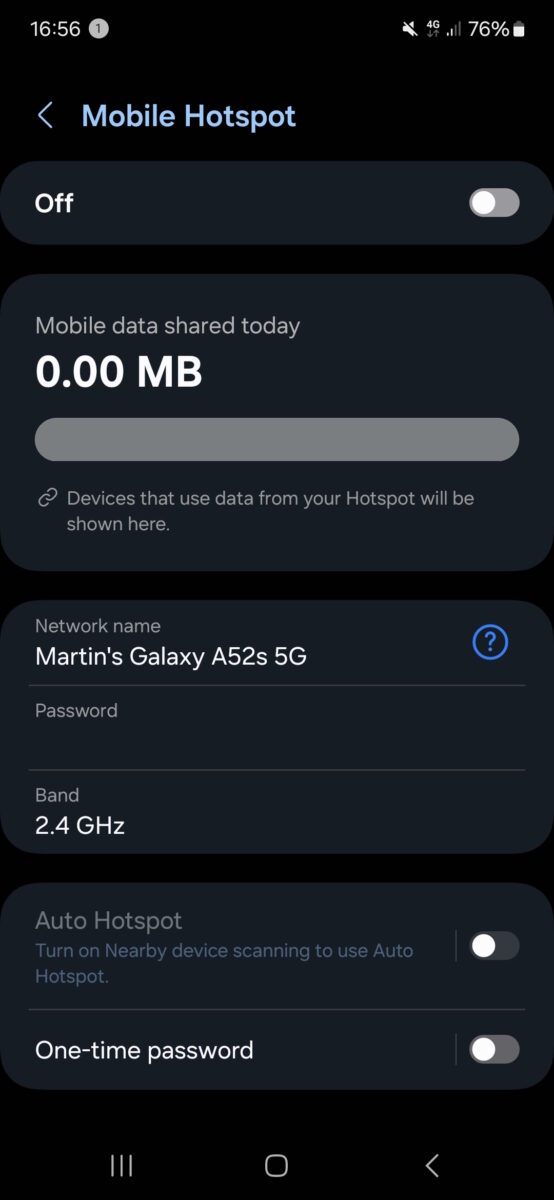
Here is how you set it up:
- Open the Settings on your Android device.
- Go to Connections > Mobile Hotspot and Tethering > Mobile Hotspot.
- Set a password for the connection.
- Set the security of the Wi-Fi connection to the maximum, likely WPA2/WPA3-Personal.
- Change the name of the hotspot connection, if you want.
- Toggle Mobile Hotspot from Off to On.
Note: whenever you enable the mobile hotspot feature, Wi-Fi needs to be turned off. Android reminds you off that and you can use the prompt that it displays to turn off Wi-Fi. If you do not turn off Wi-Fi, you cannot use the mobile hotspot feature.
Once set up, switch to your laptop or other computer. Open the list of wireless networks and you should see your Android phone's mobile hotspot there.
Select it, enter the password, and click on the connect option to establish the connection.
If everything worked, you are now connected via your Android's devices mobile hotspot feature. In other words, you have Internet connectivity on your laptop.
Some tips:
- It is recommended to enable the mobile hotspot feature only when you need it.
- If you have a data limited, you need to keep an eye on it. If it is low, avoid activities that consume a lot of data.
- Pick a secure passwords to avoid that others try to get in as well.
- Your Android device needs to be near the PC, as the signal needs to get picked up.
- There may also be a one-time password option. This is intended to allow users to connect to your device's hotspot once.
- Devices that are connected to the mobile hotspot are shown in the Settings. Use this to check if there are other devices.
All in all, it is an easy system that gives me Internet access in locations that do not provide secure or private options. You can also use it at home. When you are visiting a hospital, coffee shop, have an appointment, or something else.
Now You: have you used your device's mobile hotspot feature? If so, what did you use it for? If not, why not? Feel free to leave a comment down below.
RECOMMENDED NEWS
Microsoft Copilot app for Android released; here's how it works
Microsoft has released a Copilot app for Android devices. We take a closer look at how the new A.I....

Microsoft confirms Microsoft 365 service degradation for 1% of Chrome users
Google enabled Tracking Protection for 1% of all Chrome Stable users as part of the company's great...

Proton acquires encrypted note-taking app Standard Notes
Proton has announced that it has completed the acquisition of the encrypted note-taking app, Standa...

Windows 11 set up is automatically enabling OneDrive folder back up for users
Microsoft has made yet another silent change to the way the initial setup of Windows 11 works. The ...
Windows 10: issue prevents certain apps from launching from non-admin accounts
Microsoft confirmed a new issue today that is affecting users of the Windows 10 operating system. T...

Firefox: Mozilla confirms support for classic extensions and Manifest V3 add-ons
While Google is ending support for classic extensions for more users of its Chrome web browser, sev...
Comments on "How to use your Android phone as a mobile hotspot provider for your laptop" :