How to manage the site list in Firefox Containers
Do you use the Firefox Multi-Account Containers add-on? Have you ever wondered how to delete a website from a container? Here is how to manage the site list in Firefox Containers.
You may be aware that Firefox supports Total Cookie Protection and Enhanced Tracking Protection (isolation of third-party cookies). These options prevent websites from tracking your usage across different websites. Some people may argue that containers are no longer needed, but I disagree. It is one of the most important feature in browser.
I think Firefox Containers are still useful because it offers greater control for isolating websites to your preference. You can use them for signing in to multiple accounts. For example: I have a Container for Google to access Gmail, but I use a separate Container for YouTube.
Now, let's discuss a minor problem with the Containers add-on. The Firefox Containers button that is displayed in the address bar does not let you modify the settings, all you can do is change the container that the website opens in.
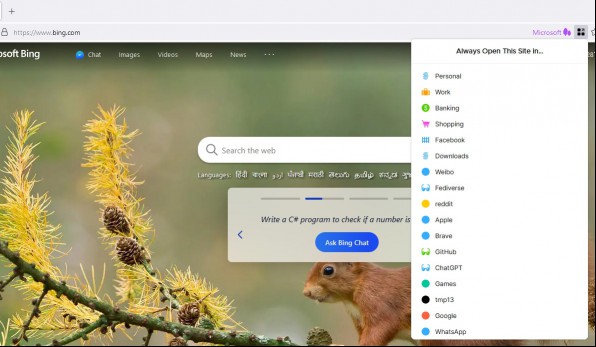
There is no right-click context menu item to manage the containers, it has the same restrictions as the button in the address bar. Many extensions have a Settings page that you can access from the about:add-ons page (click on the menu > options). For example: uBlock Origin, OneTab, Violentmonkey, etc. But the Firefox Containers extension's options are not accessible from this page. So, where exactly are the options available?
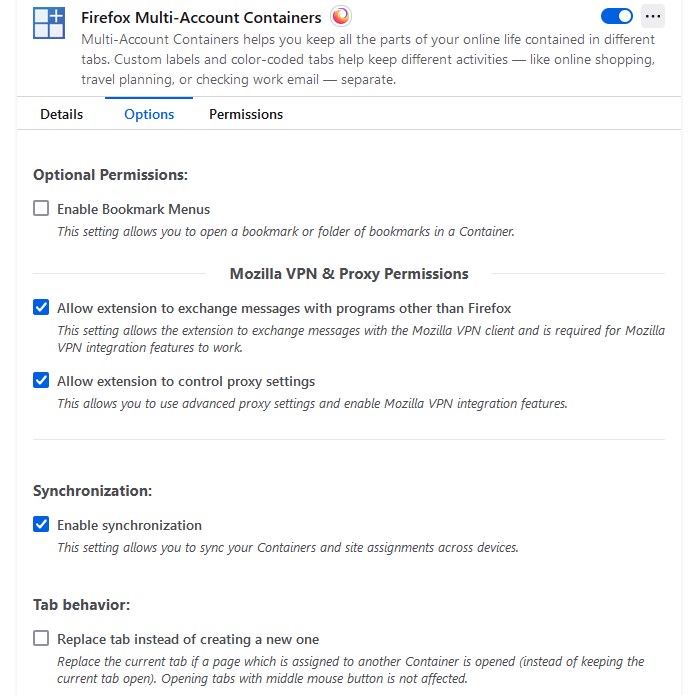
You need to use the Toolbar button for Firefox Containers to manage your containers. It may be hidden from view, under the extensions menu (puzzle piece icon) on the Toolbar. I recommend pinning the Containers button to the toolbar to access it quickly.
How to manage the site list in Firefox Containers
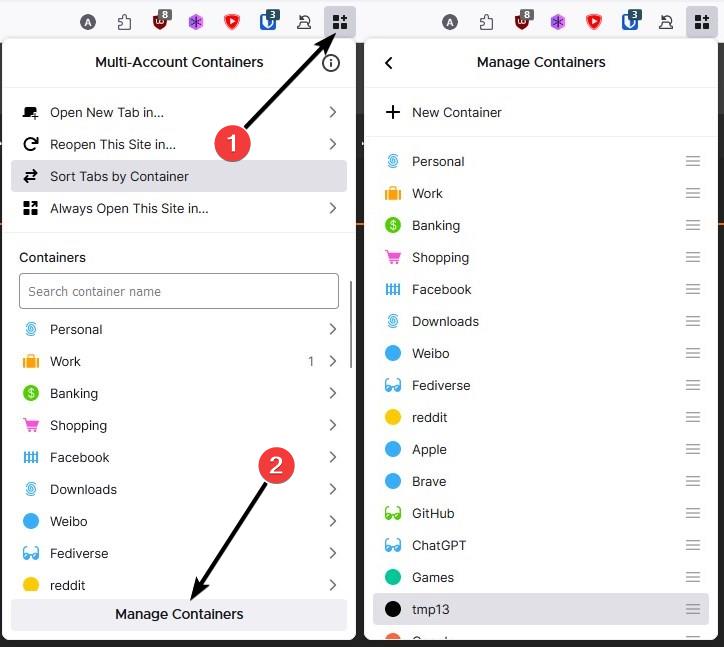
1. Click on the Firefox Containers button on the Toolbar.
2. Select the Manage containers option at the bottom of the list.
3. Click on the container that you want to Manage.
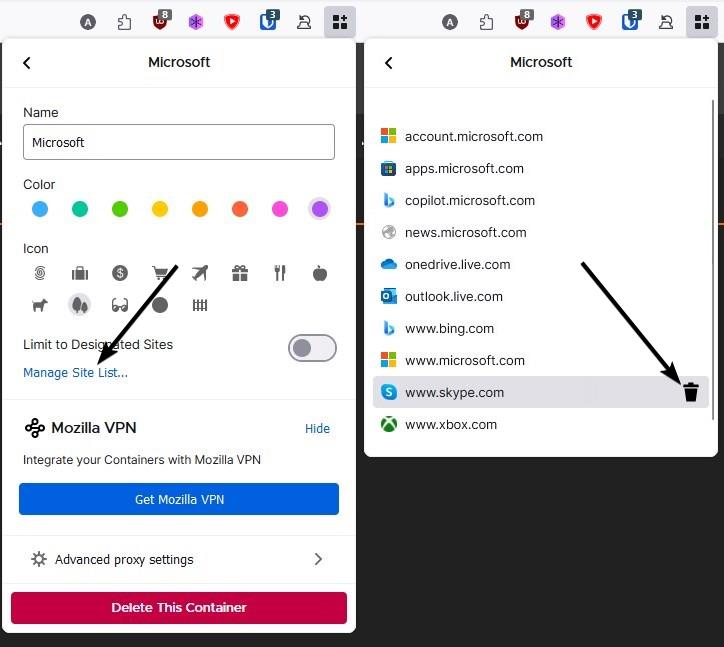
4. Now, click on the Manage site list in the panel.
5. The add-on will display all sites that were assigned to the container.
6. Mouse over the site's name that you want to remove, and click on the trash can icon that appears next to the entry.
If you want to add a specific website to a container, right-click on the new tab button (+ icon), and select the container that you want to use. Visit the website in the same tab, and click on the Firefox Containers icon in the address bar. Assign the site to a specific container, and you are good to go. Let's say you added a website to the wrong container, don't fret, there is an easy way to fix the mistake. Click on the Firefox Containers button and assign it to the container of your choice.
You can use the container settings page (step 3) to change a container's name, icon, color, limit it to designated sites. It also lets you configure the advanced proxy settings, or to delete the container permanently.
I think the container settings needs to be overhauled to allow moving websites from one container to another. There needs to be a faster way to manage containers, the right-click menu seems like the best choice.
RECOMMENDED NEWS

LastPass is enforcing some security changes to user accounts
LastPass is making some changes to enhance the security of its to user accounts. The news comes as ...
macOS 15 Sequoia announced with Window Tiling, iPhone Mirroring, Passwords app and more
Apple has announced the next version of macOS. Here are the best features in macOS 15 Sequoia. ...

The Linux Foundation announces the Supporters of Chromium-Based Browsers
The Linux Foundation has launched an initiative called the Supporters of Chromium-Based Browsers. G...

Blizzard Announces Diablo 4's Second Expansion Set for 2026 Release
Blizzard Entertainment has announced that the second expansion for Diablo 4 is scheduled for releas...

Prime Video Introduces AI-Powered Dubbing in English and Spanish
Amazon's Prime Video has initiated a pilot program to incorporate artificial intelligence (AI) in d...

Microsoft replaces Remote Desktop app for Windows with an app that is liked even less
Windows 11 users and administrators who want remote desktop connectivity can use the baked-in funct...
Comments on "How to manage the site list in Firefox Containers" :